Your music,
within reach.
Control MusicDesktop from your phone without going back to your PC. Skip tracks, adjust volume and see what's playing wherever you're connected.
Remote is in closed testing on Android. Join the Google group, then opt in on Google Play using the two steps below.
Want to try Remote before launch?
Do you use MusicDesktop on Windows and have an Android phone? Join the closed test by completing these two steps in order. Use the same Google account for the group and Google Play. You do not need to send your email address to the team.
-
Step 1
Join the Google Group
First, join the MusicDesktop Remote Testers group. You must be a member to access the closed test on Google Play.
-
Step 2
Become a tester on Google Play
Once you have joined the group, open the Google Play page with the same account and click “Become a tester”. You can then install the app.
Important: joining the group alone does not count as joining the test. You must also confirm your participation on Google Play by clicking “Become a tester”. Then stay enrolled in the testing program for at least 14 consecutive days without leaving it.
Everything you need in your pocket.
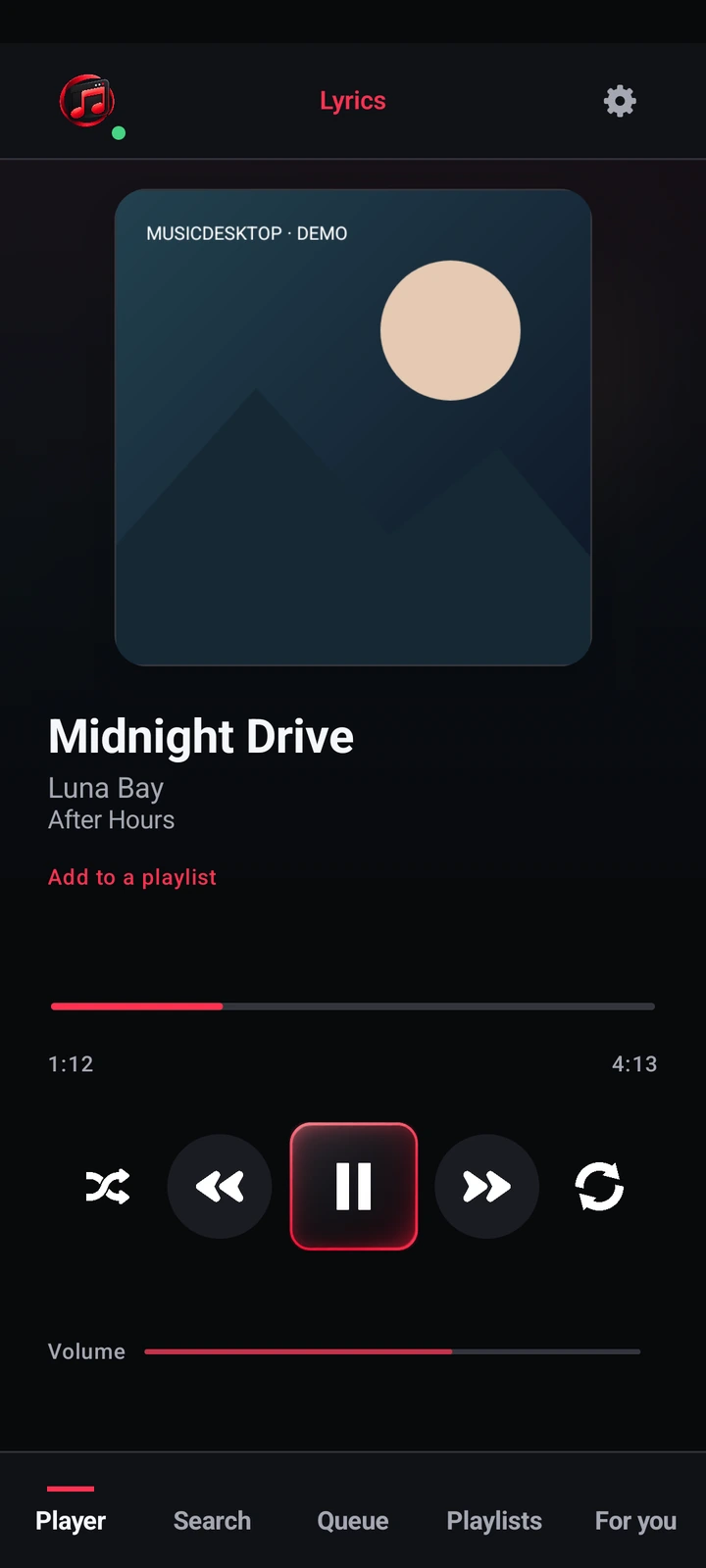
Your phone controls MusicDesktop. The music keeps playing on your computer while the controls stay close at hand.
Remote playback
Pause, resume, and skip to the previous or next track.
Now playing
See the title, artist, cover art and progress of the track you're listening to.
Volume and progress
Adjust volume and seek within the track from your phone.
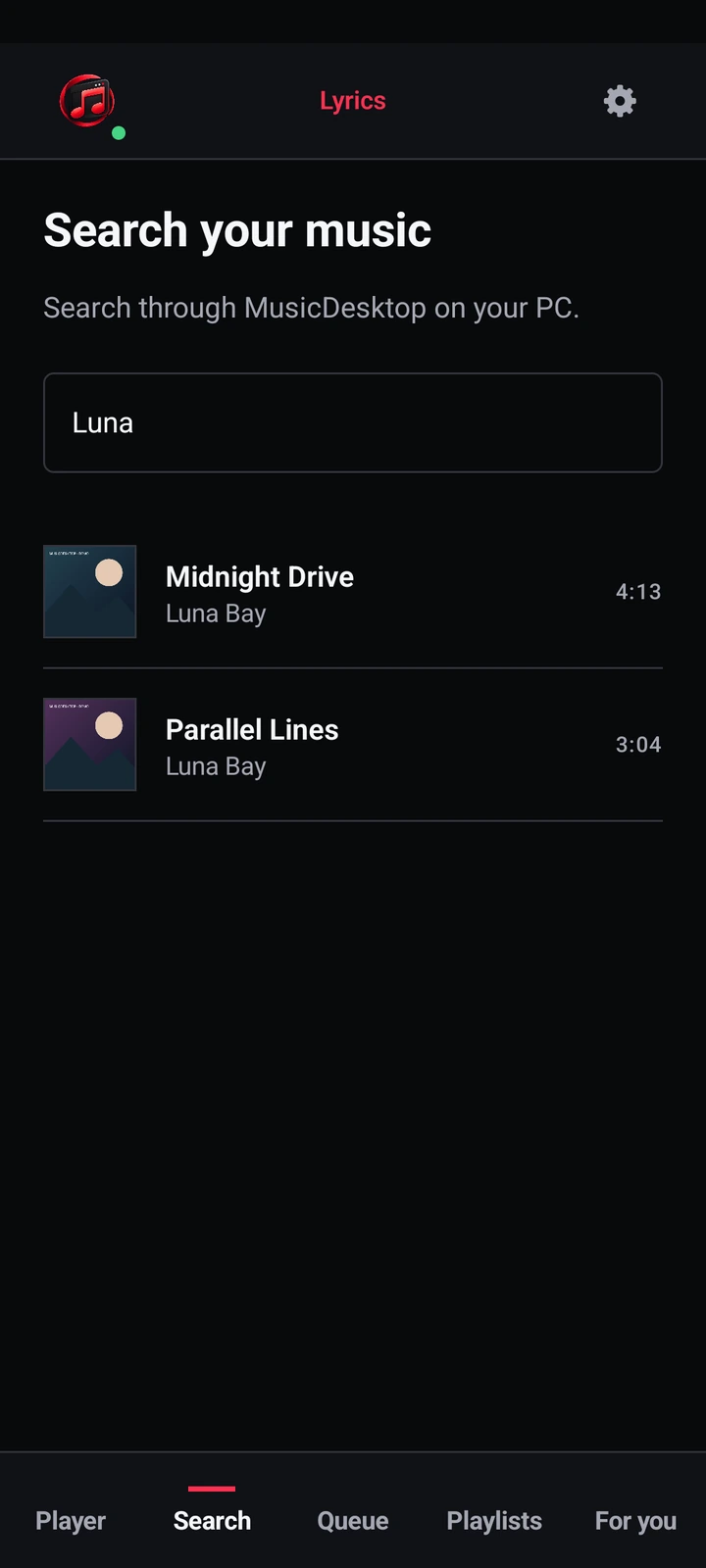
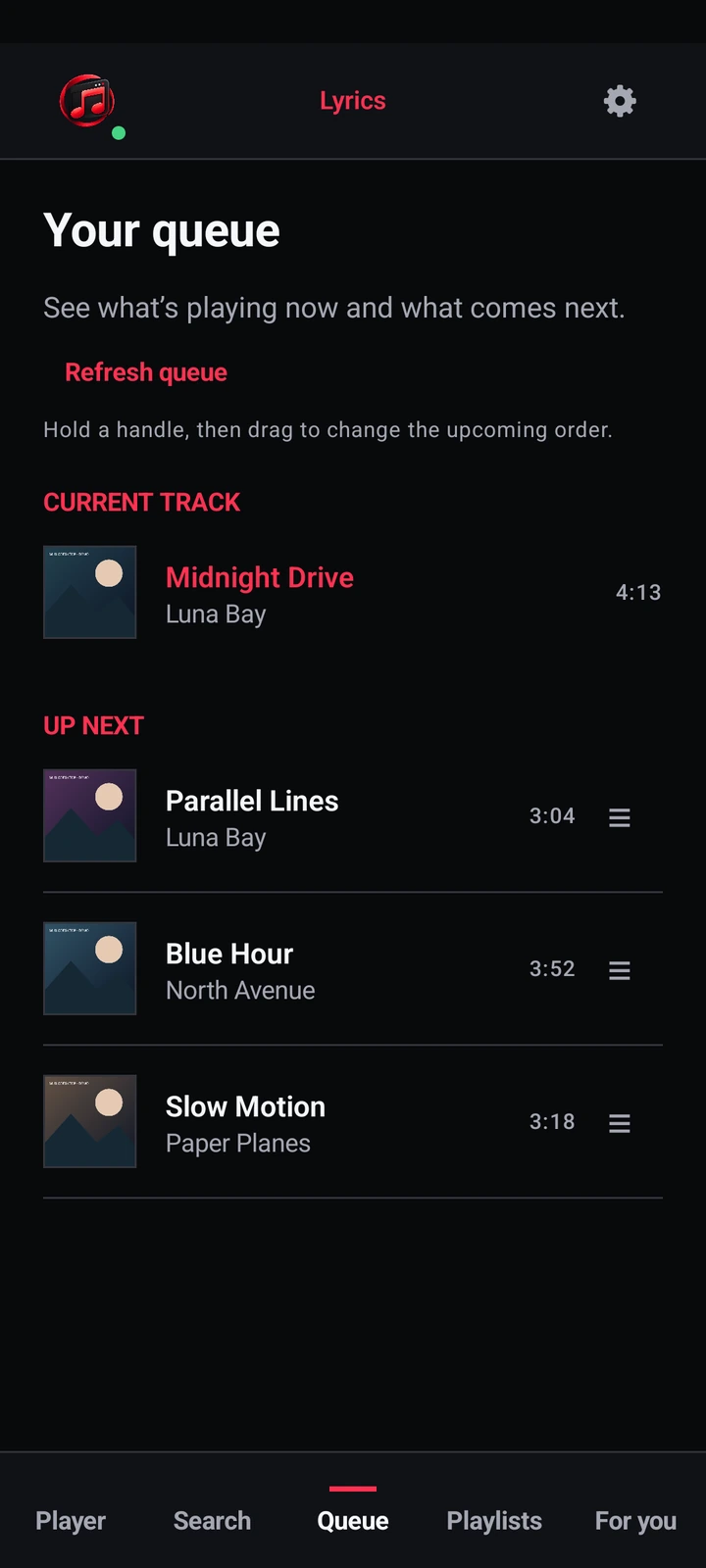
Search and queue
Find a track and browse the playback queue from your MusicDesktop session.
MusicDesktop 2.0.5 · Requires Remote 1.0.5
Lyrics, your queue and your playlists.
These features require MusicDesktop 2.0.5 and Remote 1.0.5. Check the installed versions on both devices; Remote remains distributed through Android closed testing.
Lyrics as you listen
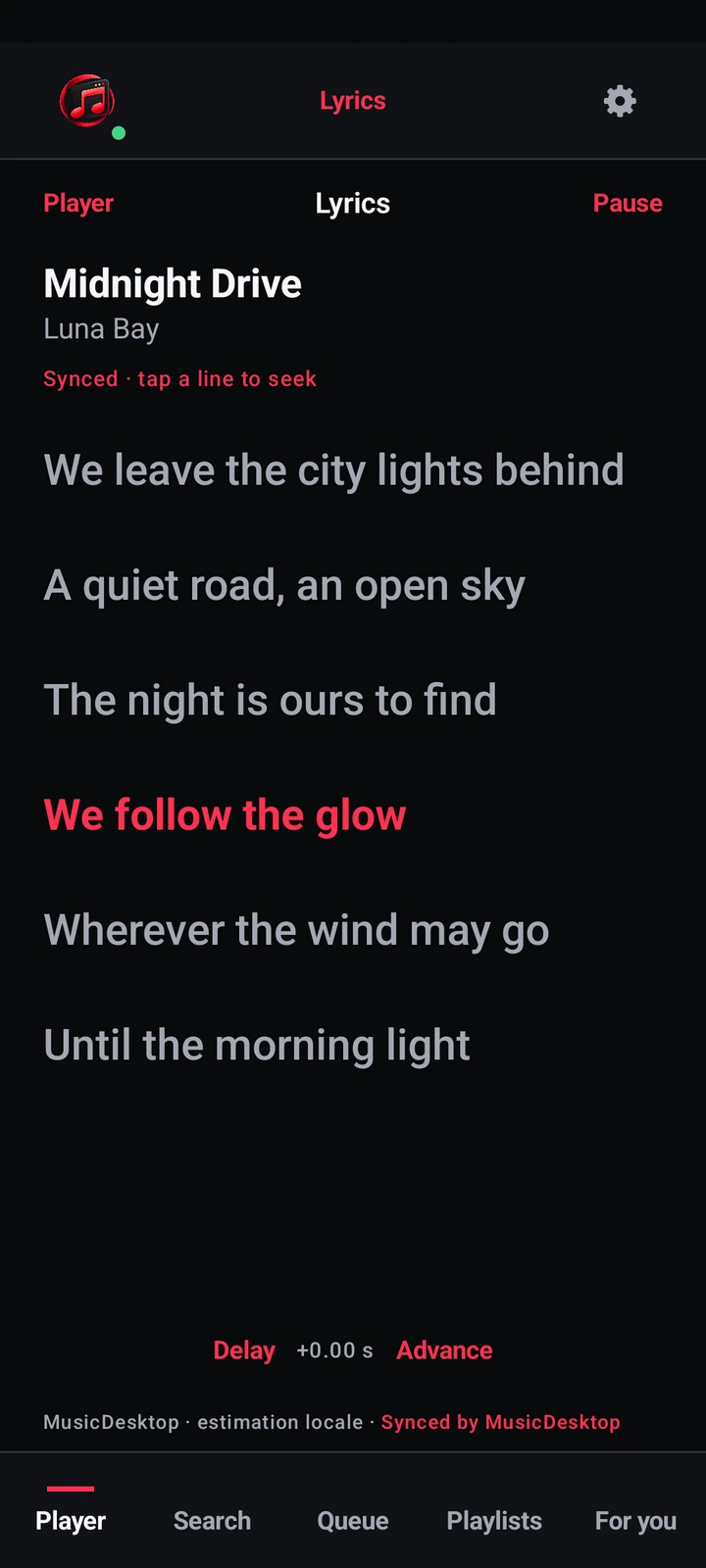
Open lyrics from the button in the centre of the header. It stays grey when lyrics are unavailable. When timings exist, the current line follows the track.
Clearly labelled sync
YouTube Music and LRCLIB timings take priority. A red label identifies estimated alignments made by the MusicDesktop engine on your PC.
Choose what plays next
Drag upcoming tracks to change their order. Move controls are also available if you prefer not to use the gesture.
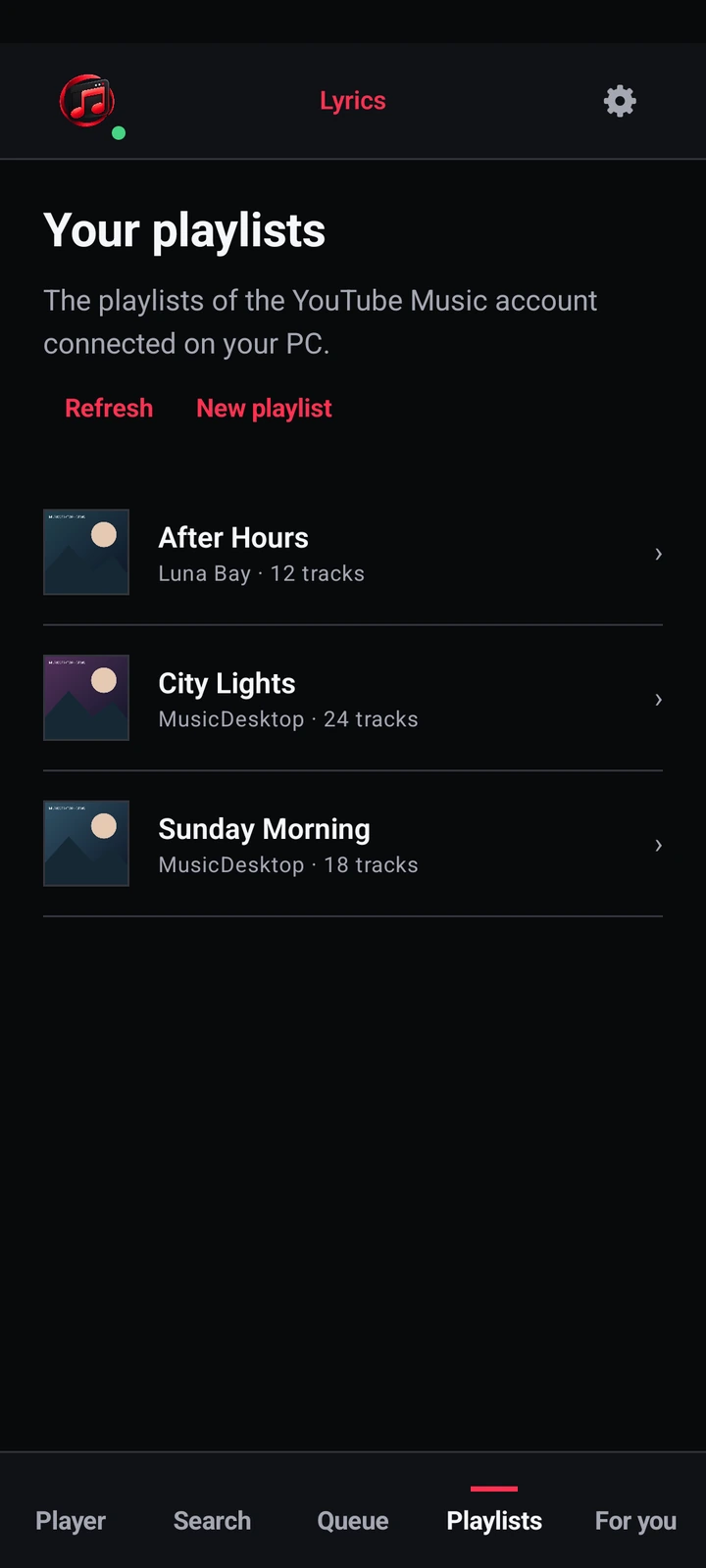
Your YouTube Music playlists
Access playlists from the account connected on your PC. Create a private playlist, rename it, add the track from the player or remove a song.
From the player to the words.
The Android UI of Remote 1.0.5, with demo tracks, lyrics and playlists.
Your PC and phone, working together.
- 1
Open MusicDesktop
Install the Windows app and open Remote in its settings.
- 2
Pair your phone
Scan the QR code or enter the displayed code, then approve the request on your PC.
- 3
Enjoy your music
Find your PC in Remote and control playback from your Android phone.
Your PC must remain on and connected to the internet. Sound stays on the computer: Remote is a controller, not an audio player on your phone.
See the step-by-step guideReady for your next track?
MusicDesktop for Windows is available now. MusicDesktop Remote will join Google Play after testing.